Home Automation and Building Automation eHouse can be tested, learned and evaluated with the demo unit for eHouse system.
Demonstration module requires +12 V power connection preferably with a computer power supply from PC , which connect the entire system , using standard PC power supply connectors (4PIN) .
To test eHouse Controllers { Building Automation eHouse – Controllers } ({HeatManager heating control central} , RoomManager { lighting control on the rooms} , ExternalManager { control gates }) It is necessary to connect the tested controller and RS232 to RS485 converter { Building Automation eHouse – connection to PC } .
To configure the controller { Automation Home} and understand the settings with a DEMO Board, it is also necessary to install the eHouse PC software { eHouse home automation – Software } eHouse Building Management system from http://home-automation.isys.pl/ site => Documentation menu – > Files .
The installation should be run out on the administrator privileges preferably on Windows XP on 32bit system.
First start of each application should be performed also on the administrator acount , to enable the automatic setting of the Windows Firewall and access rights to files “ACL”. Otherwise, your application will not work correctly and finding the errors will be very difficult, especially at the first operation of the system and its software eHouse { Home Automation – Gallery of Software Control System management} { Home Automation – Management } .
After installing the eHouse application on your computer , Unpack the file “samples.zip” , located in the eHouse root directory , changing the default path to extract to the root of the eHouse application. This must be done to all the files included directly in the directory “%Ehouse_DIR%/SAMPLES/” . Alternatively, you can unpack to another location and copy the unzipped directory SAMPLES directory directly to the root of eHouse. Similarly to the previous case , All applications must run from the directory ” %Ehouse_DIR%/SAMPLES/bin/ ” with administrator rights to ensure their proper operation .
Photo of demo board module:
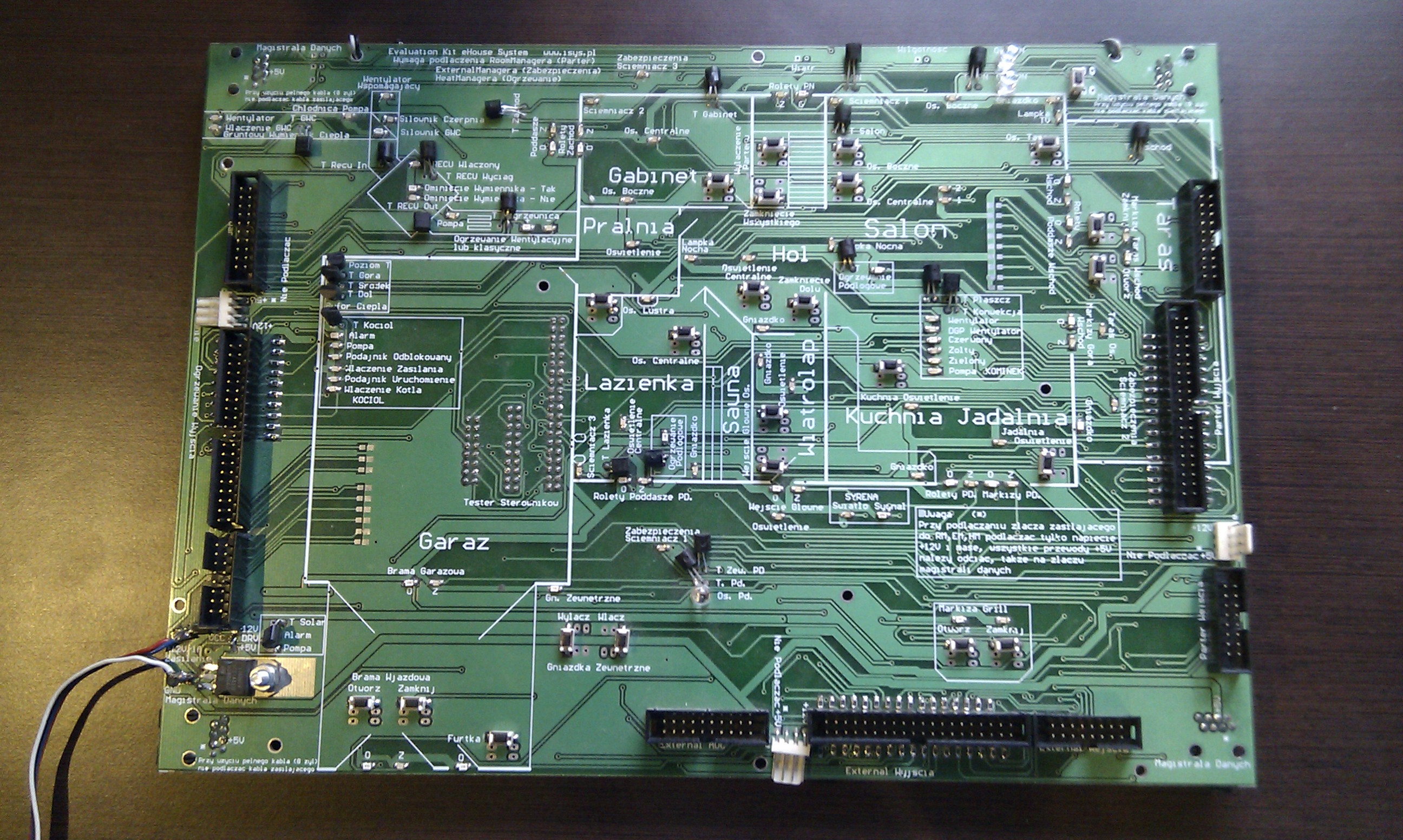
eHouse Home Automation Demo – Full image
- Connectors on the left side of the module are designed for HeatManager
- Connectors on the right side of the module are designed for RoomManager
- Connector on the bottom of the module for connection to ExternalManager or CommManager if exists { home automation – control of blinds, gateways, drives }
- All the data bus connector RS – 485 are shorted together, and you can use any RJ – 45 cable
- All the power connector for bus drivers (4pin) are the same and it does not matter which slot you use
Demo module should be fully connected to the tested controllers before switching the power supply as follows:
Power Connection Demo { Home, Building Automation } Power Connection (without power on to the module) +12 V , to outlet 4pin computer PC power supply , (best is the computer) on which you installed the software . Otherwise, you must provide proper grounding of all connected elements .
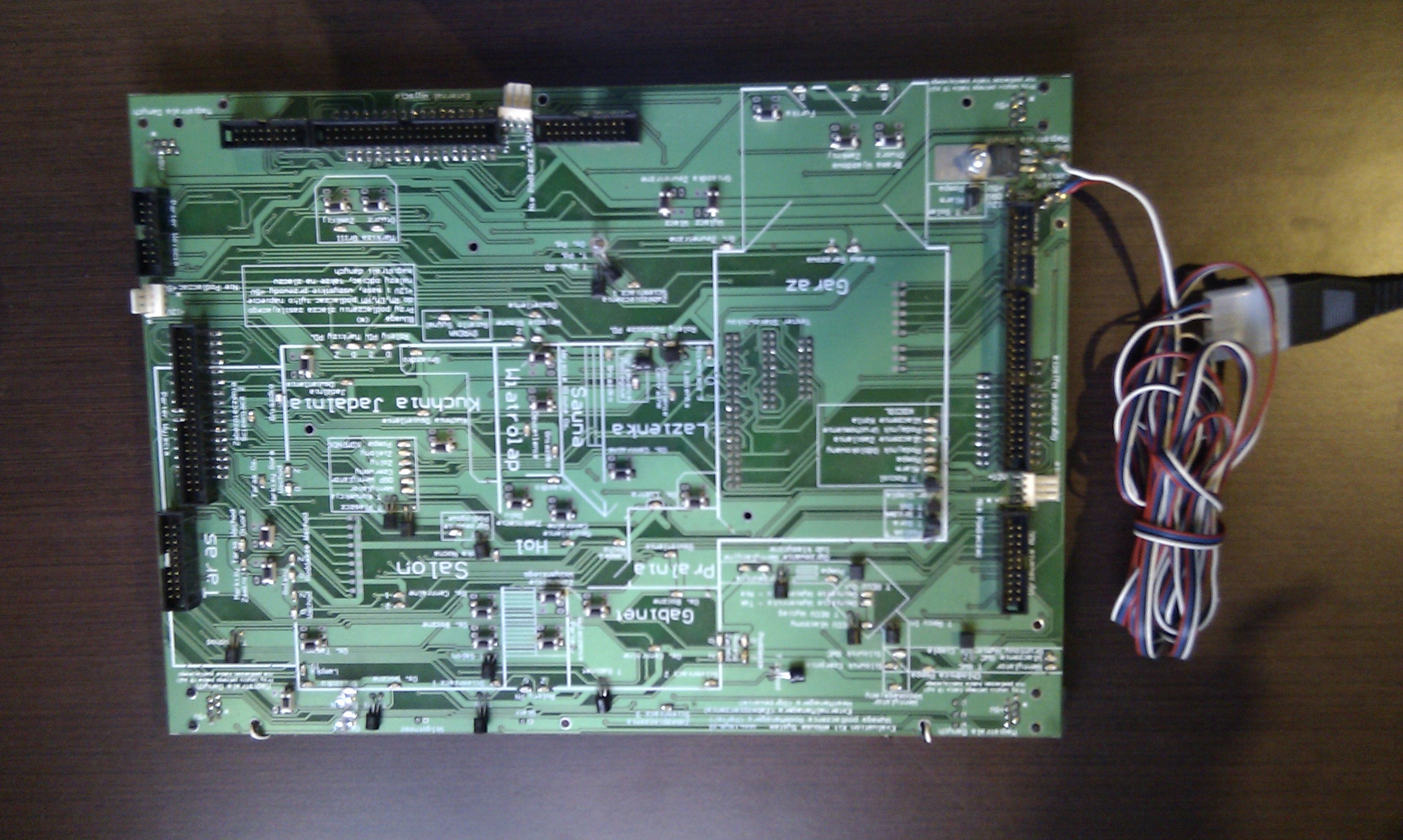
Connecting the Power Cord Demo home automation eHouse Full Screen
Connecting the RS 232 to 485 converter module to demo board of eHouse smart home.
The converter is connected to any RJ – 45 located on the demo unit (UTP cable – 8 wires) without cutting offs because it is powered from eHouse data bus (we use the standard sequence of lines {and colors} discussed in the installation documentation) . The cable is crimped 1:1 without crossing .
eHouse Home Automation – User self-design and installation
eHouse Home Automation – User self-installation
eHouse Home Automation wiring connection details
In the case when the demo module is connected to the notebook by adapter RS – 232 to USB .
 Connecting to a PC, demo installation of eHouse home automation – Full Screen
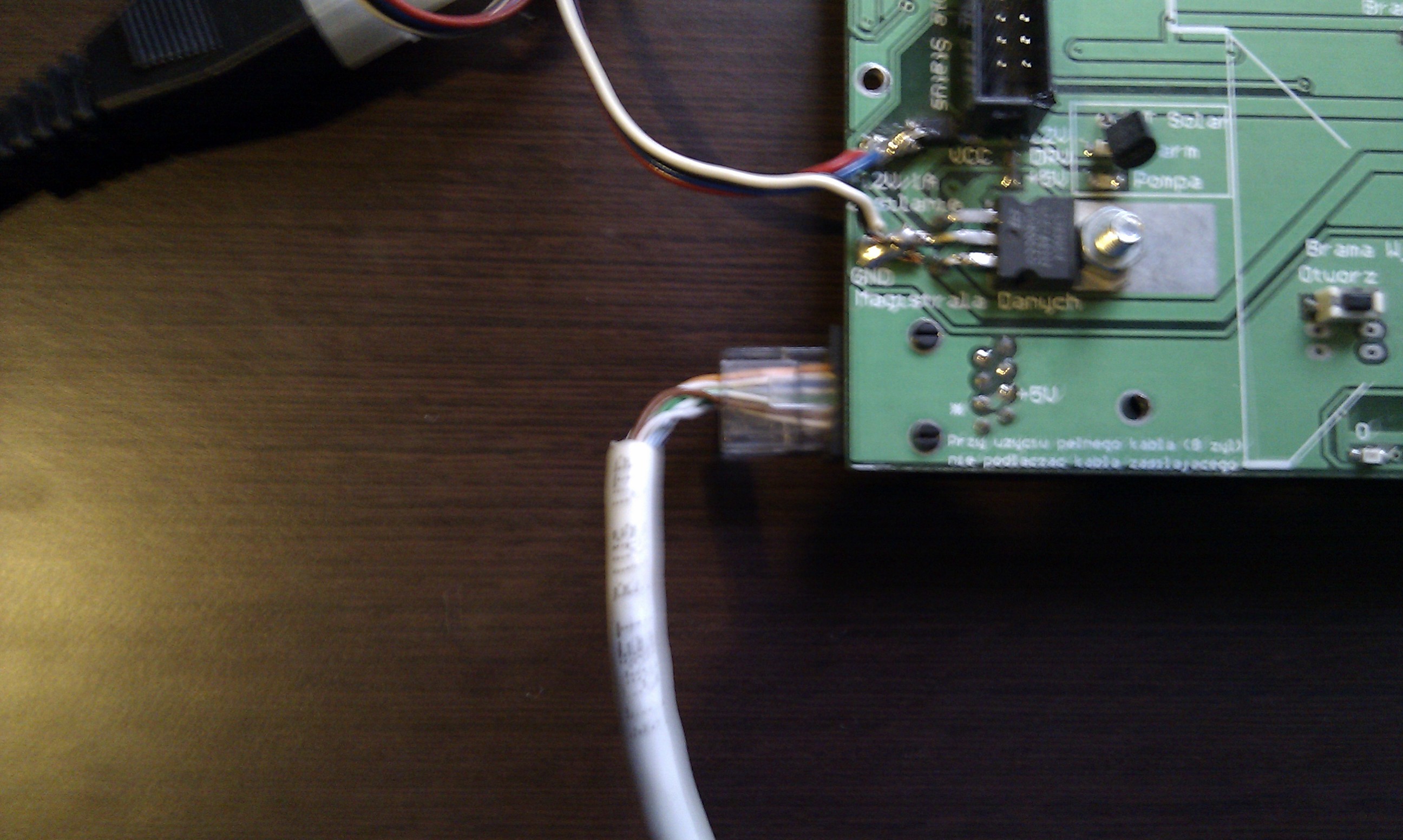
Connecting to a PC demo installation eHouse home automation – Full Screen
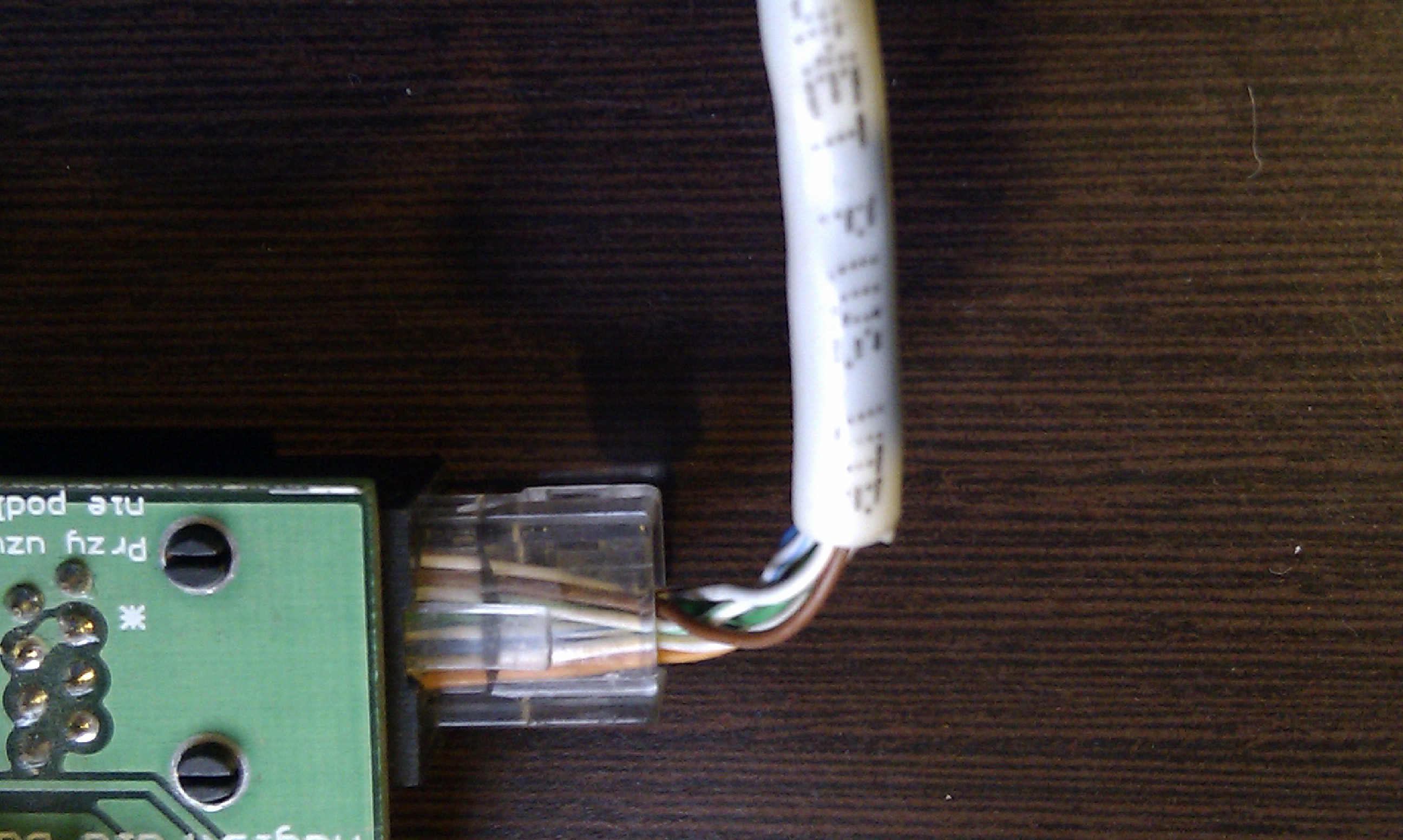
Connecting to a PC demo installation home automation eHouse Full Screen
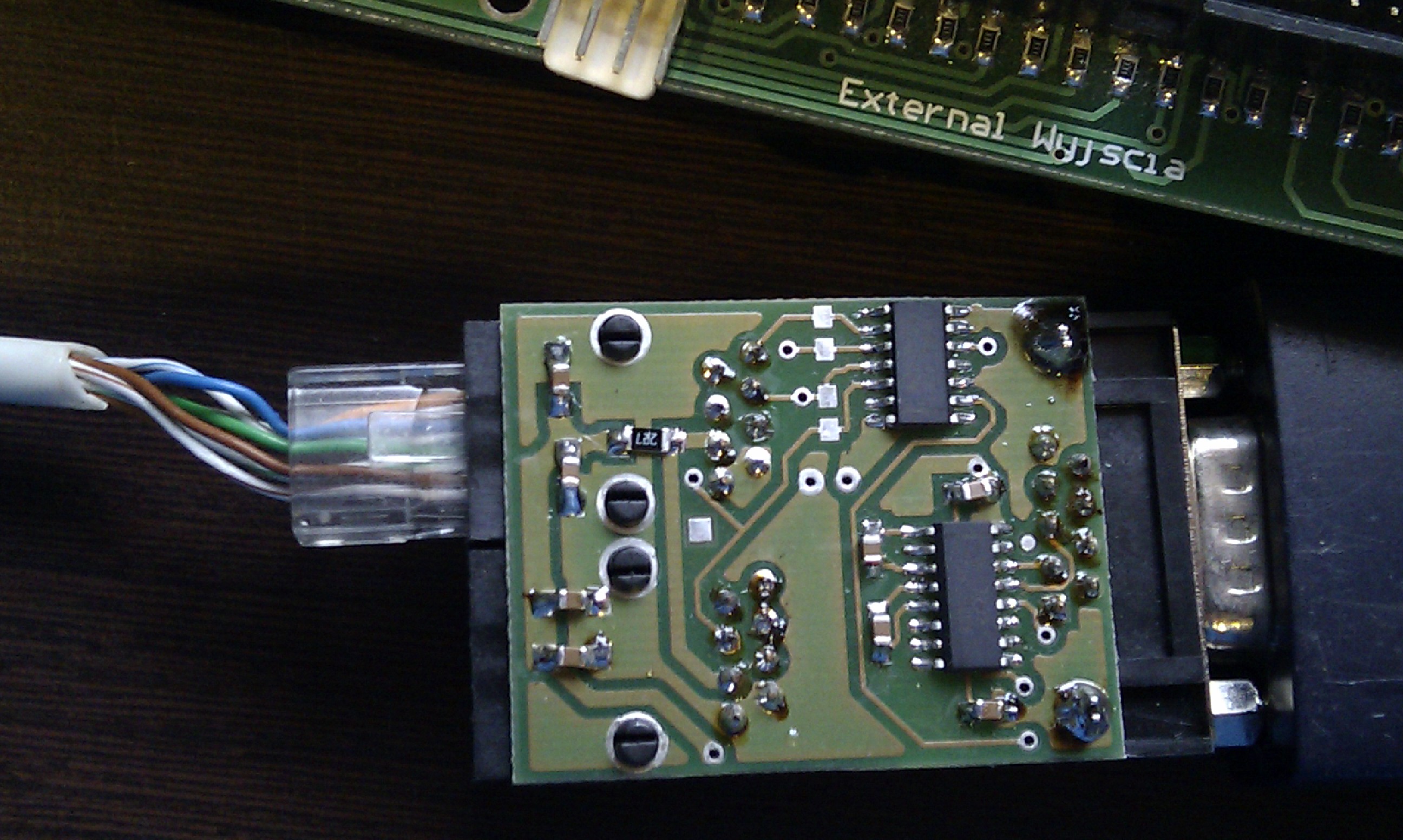
Connecting to a PC demo installation of eHouse home automation – Full Screen
Connecting the digital outputs and dimmers RoomManager flat IDC Tape – 40 (40pin – as for IDE hard drive) .
flat cable is crimped 1:1 without crossing. The cable must have Crimping IDC.
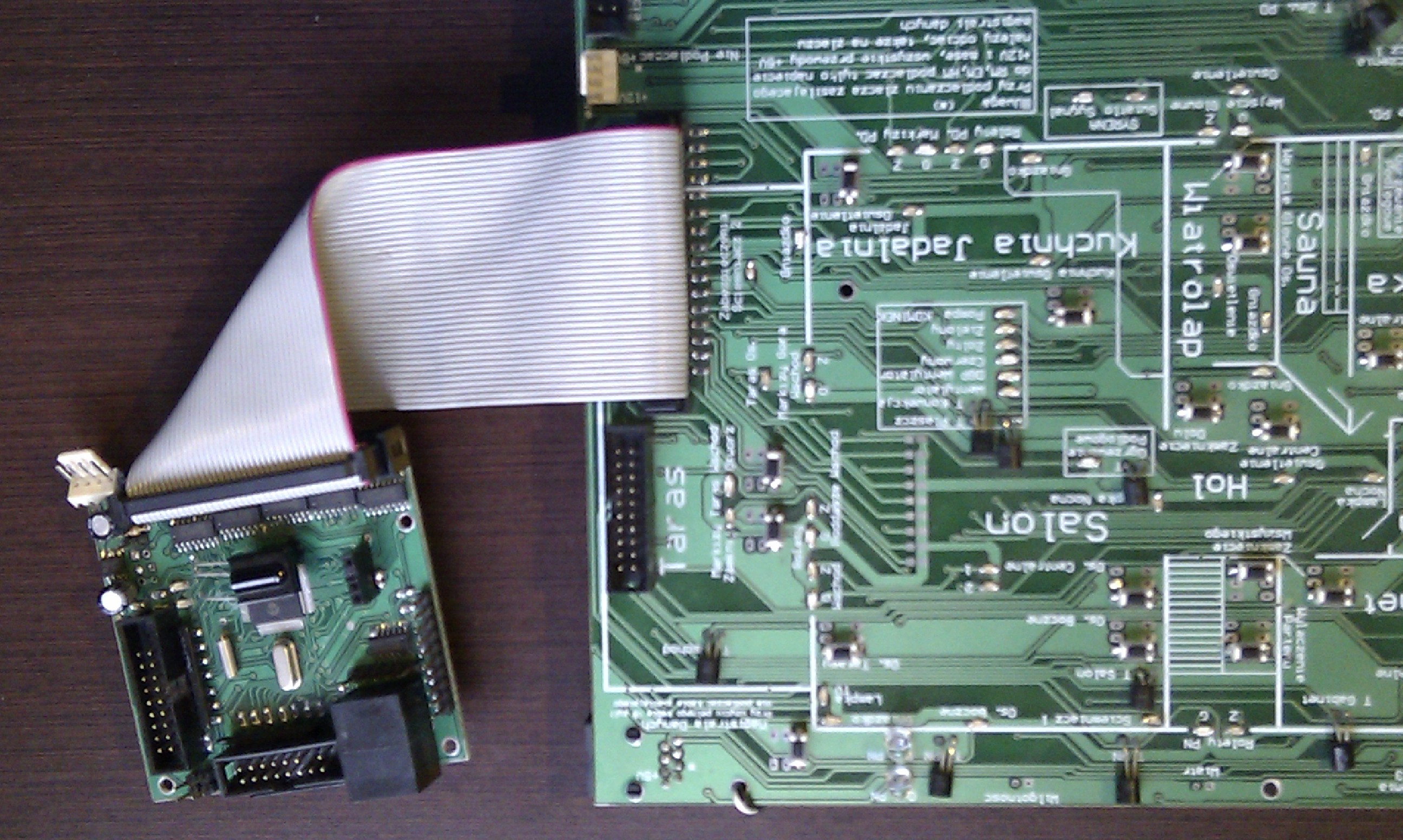
Connecting RoomManager to the Installation Demo eHouse home Automation – Full Screen Connecting RoomManager the analog to digital converter inputs (measuring) flat IDC Tape – 20 (20pin) .
Flat cable is crimped 1:1 without crossing.
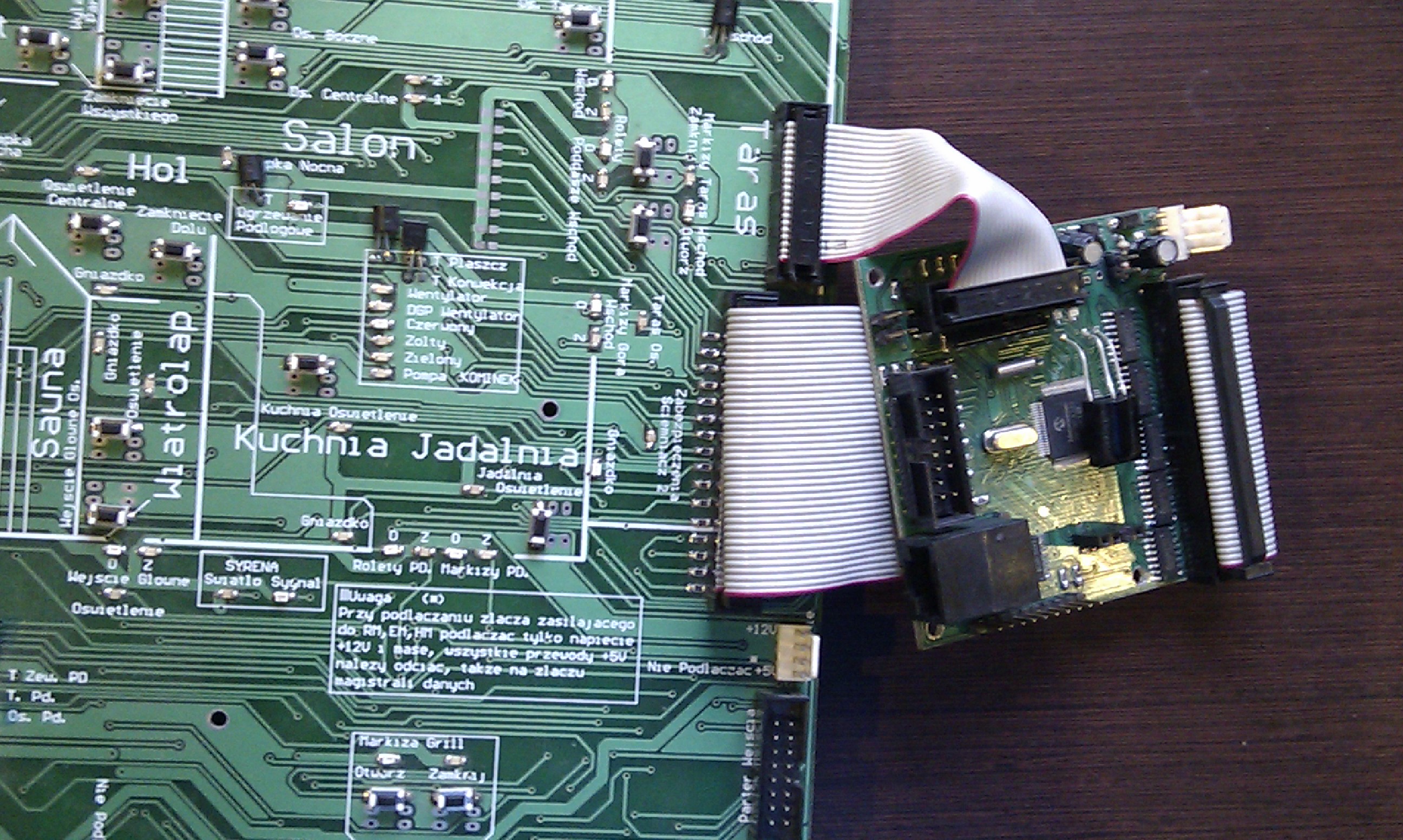
Connecting to the Installation Demo to RoomManager. eHouse home automation – Full Screen Connecting the digital inputs RoomManager flat IDC Tape – 16 (16pin) .
Flat cable is crimped 1:1 without crossing.

Connecting Demo Installation to RoomManager. eHouse home automation – Full Screen RS485 Network connection via UTP-8 cable to RoomManager , and RJ-45 connectors crimped.(F)
1:1 cable is crimped without crossing. In the case of usage the power supply bus for powering RoomManager, cut the 2 wires (white – green and green (+5V) ) in accordance with the eHouse bus standard of colors.
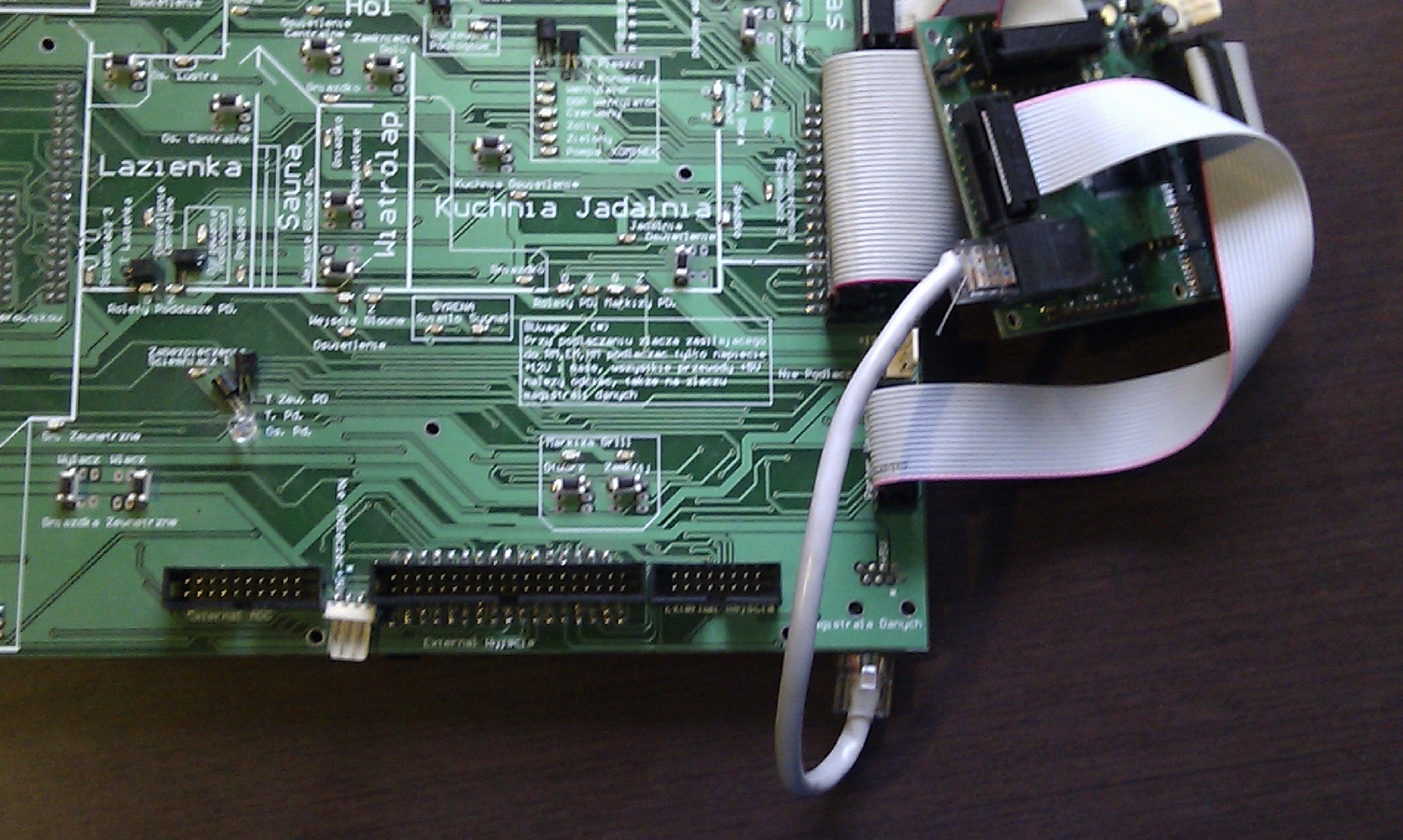
Connecting RoomManager to Installation Demo of eHouse home automation system – Full Screen 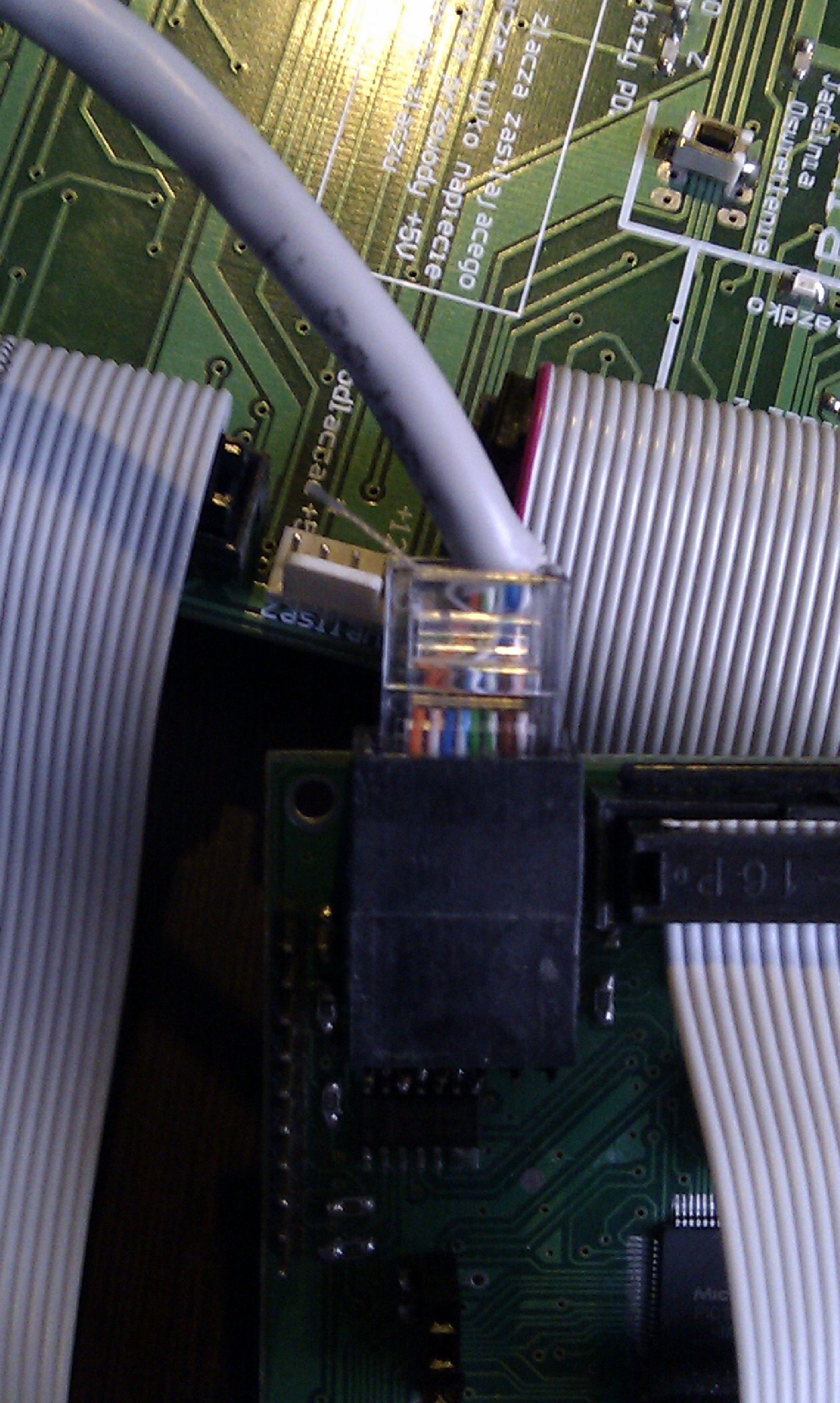
Connecting RoomManager to Installation Demo of eHouse home automation system – Full Screen
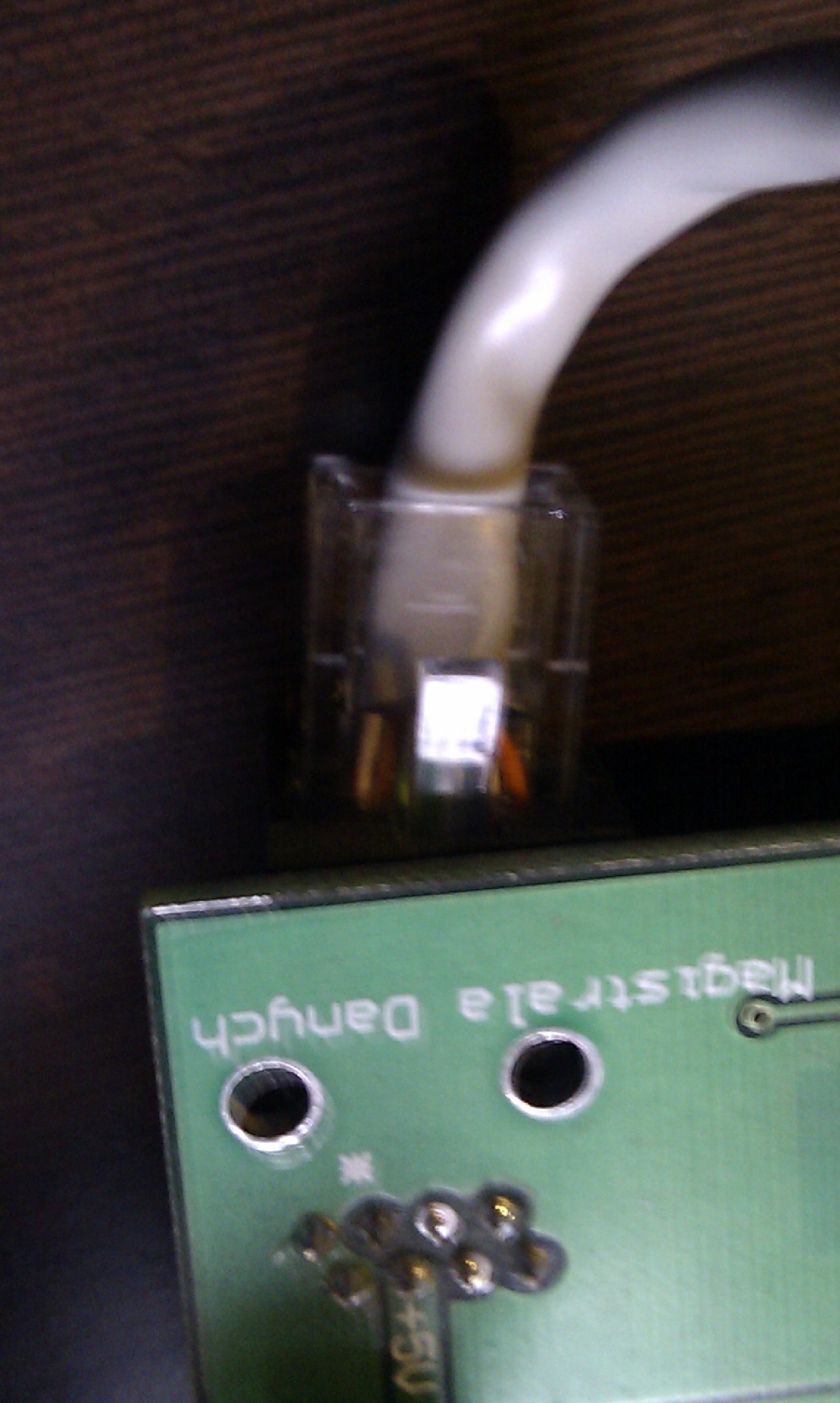
Connecting RoomManager to Demo Installation of eHouse home automation – Full Screen
RoomManager connection to power bus. RoomManager supplies only a single voltage of +12 V connector (4pin) .
In the case of usage data bus for powering for RoomManager – 12V power supply cables must be cut off (5V to the data bus line is taken) . On the other hand when powering controller from power bus (12V) – 5V Cable on the Data bus must also be disconnected (white-green & green). eHouse Controllers have built in power supply circuit for regulation voltage to the value required by the module.

Connecting RoomManager to Demo Installation of eHouse home automation – Full Screen
Double check, making sure that all cables are connected properly tightened and turn on the power supply:
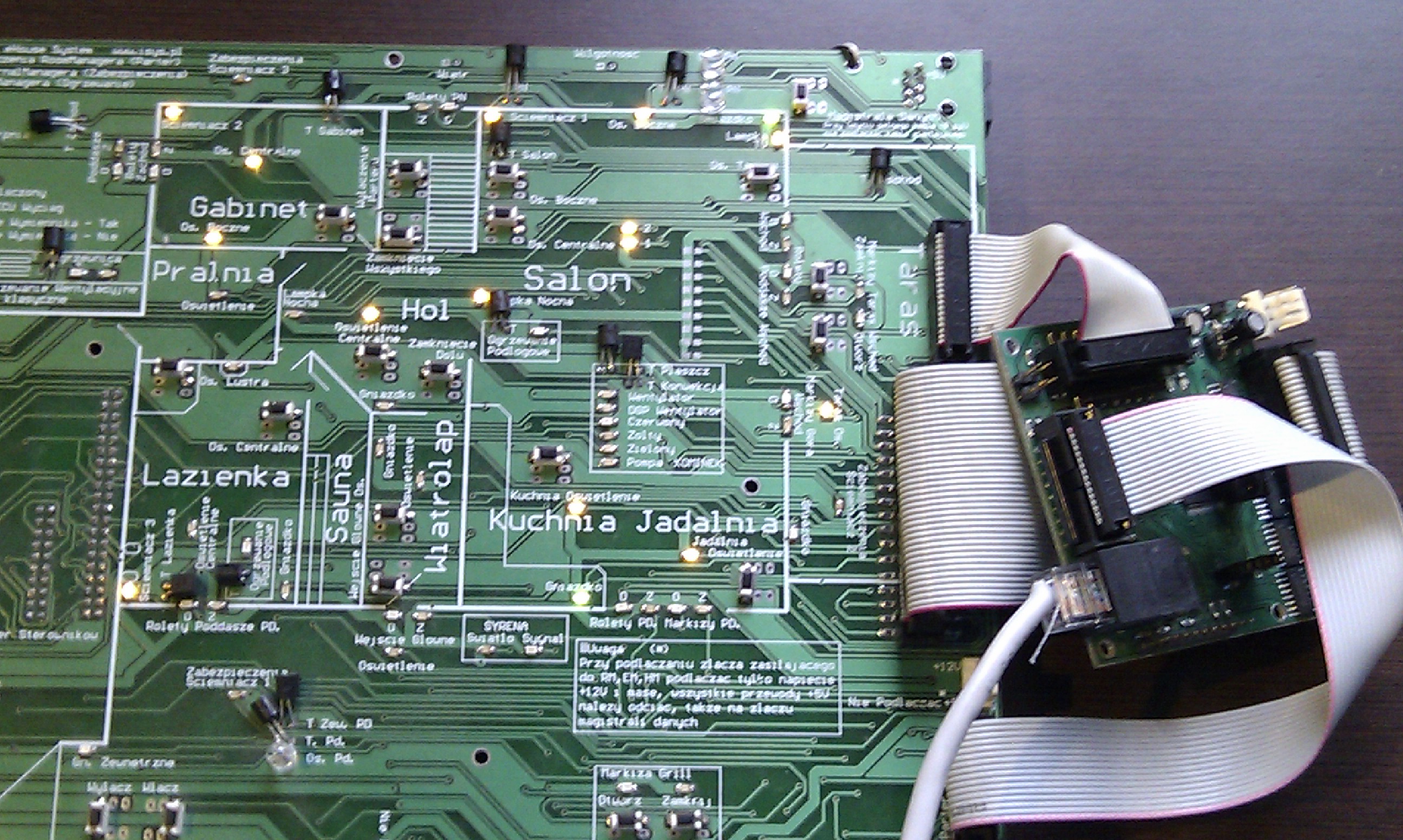
Connecting RoomManager to Demo Installation – eHouse home automation – Full Screen
Module DEMO at work 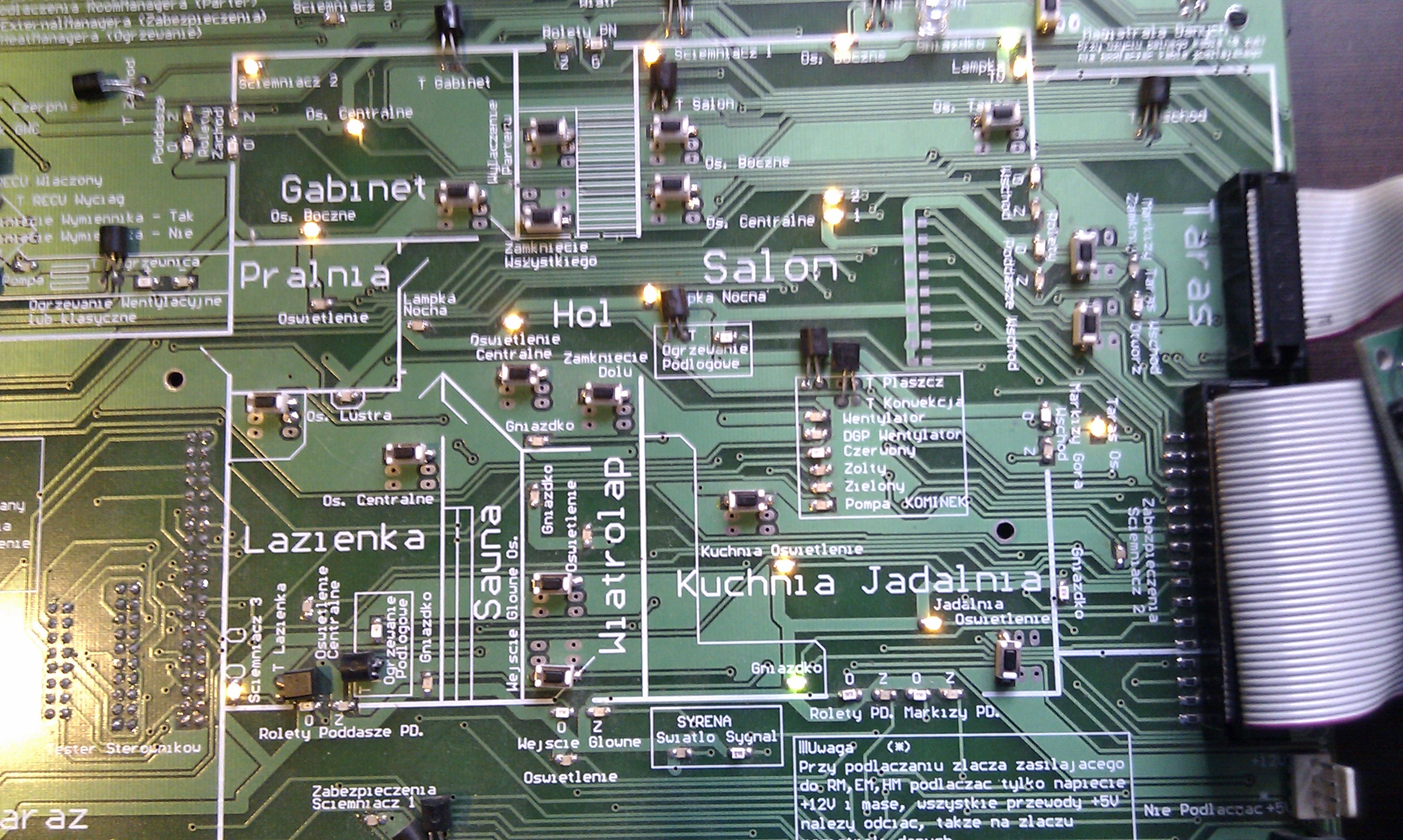
Connecting to the Installation Demo RoomManager home automation eHouse Full Screen
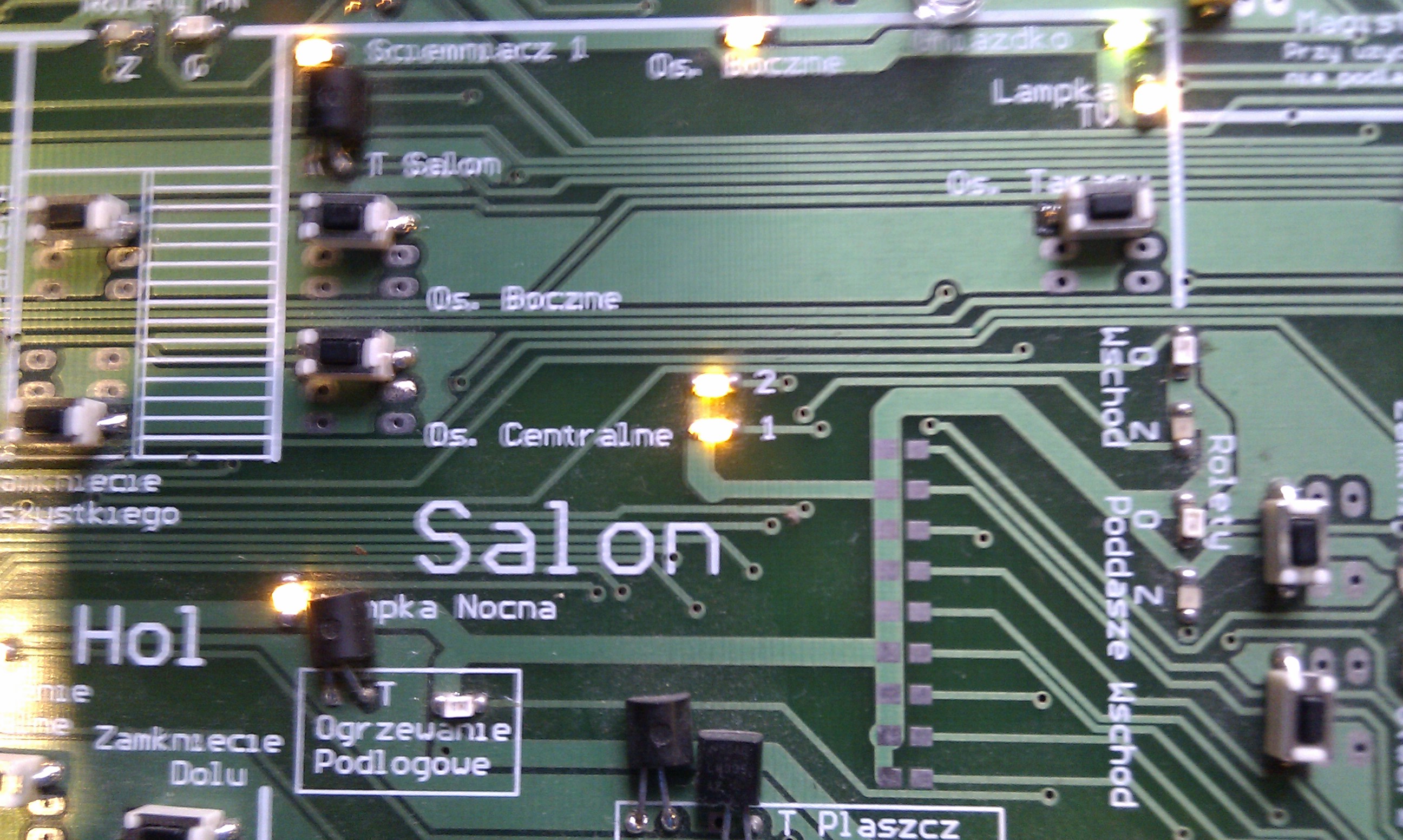
Connecting RoomManager to Demo Installation – eHouse home automation Full Screen
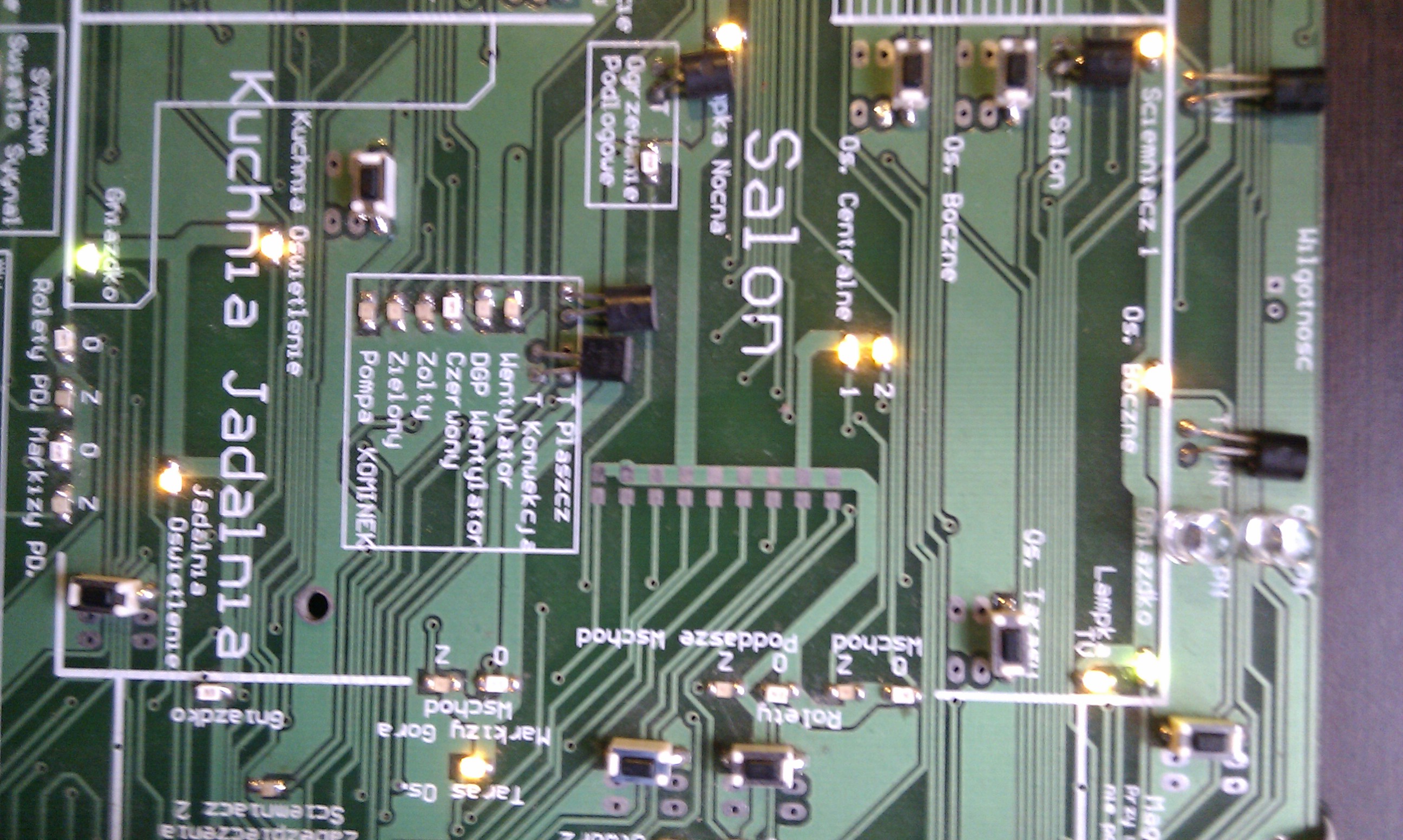
Connecting RoomManager to Demo Installation , eHouse home automation – Full Screen
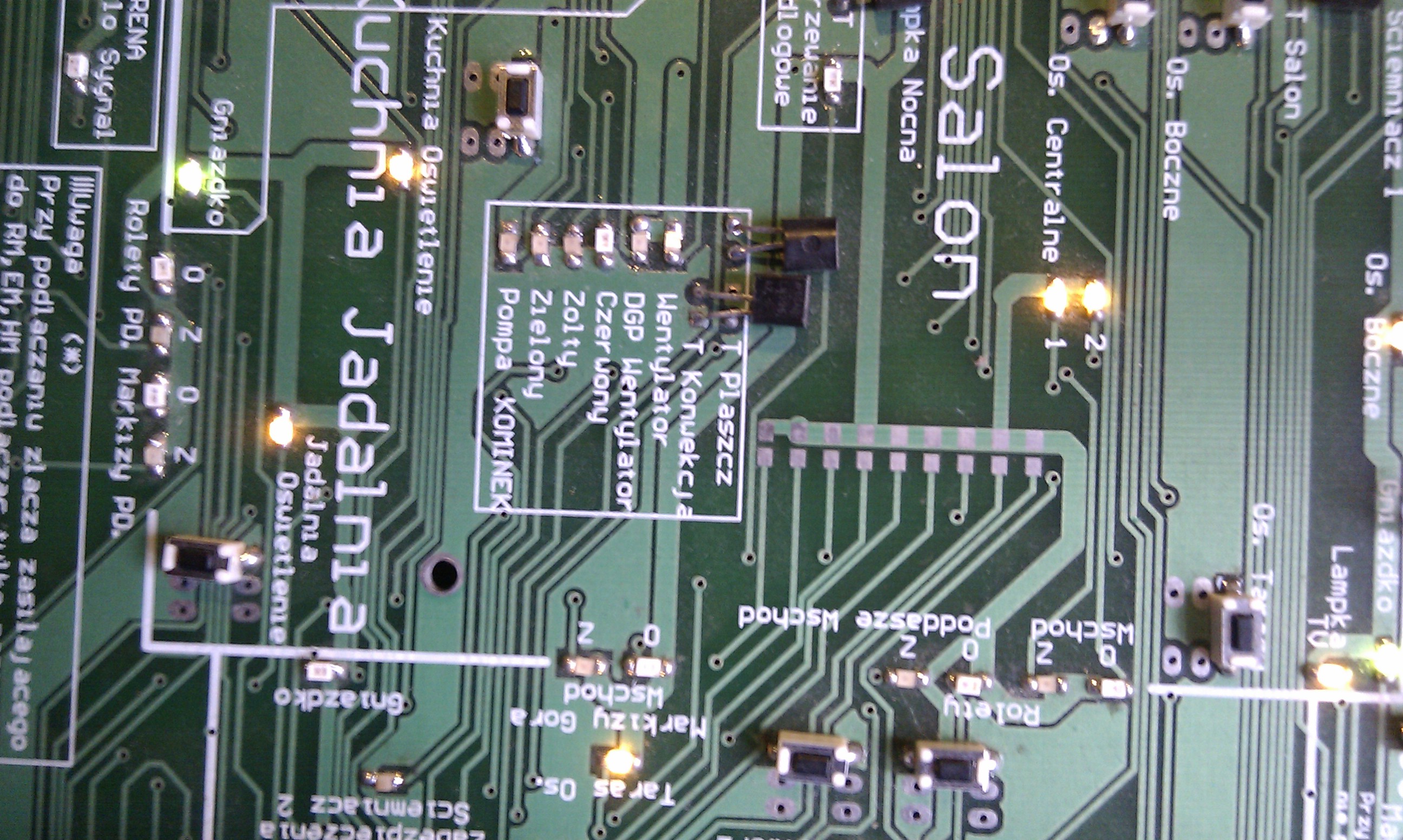
Connecting RoomManager to the Installation Demo – eHouse home automation Full Screen

Connecting RoomManager to Demo Installation – eHouse home automation – Full Screen
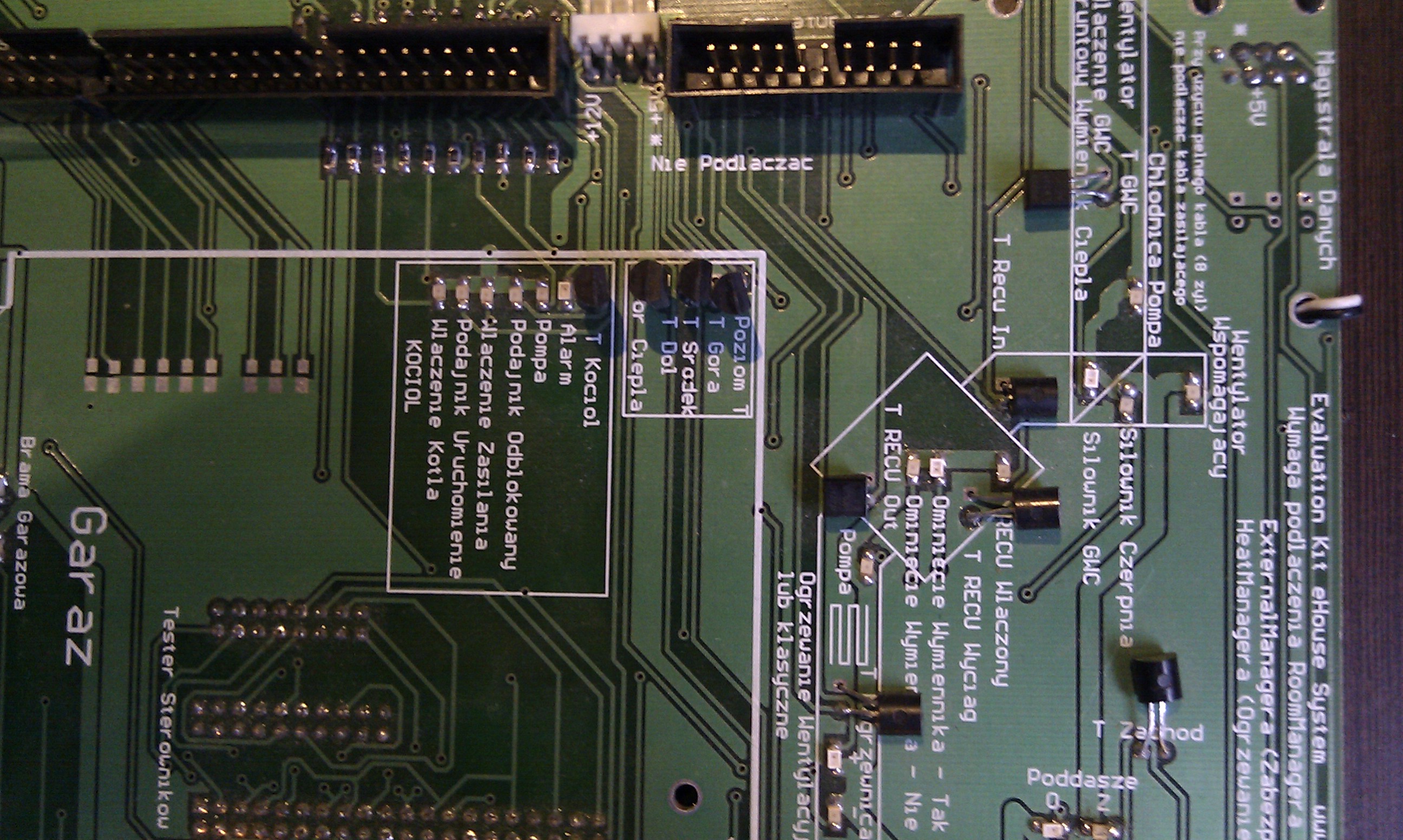
Connecting RoomManager to Demo Installation eHouse home automation – Full Screen
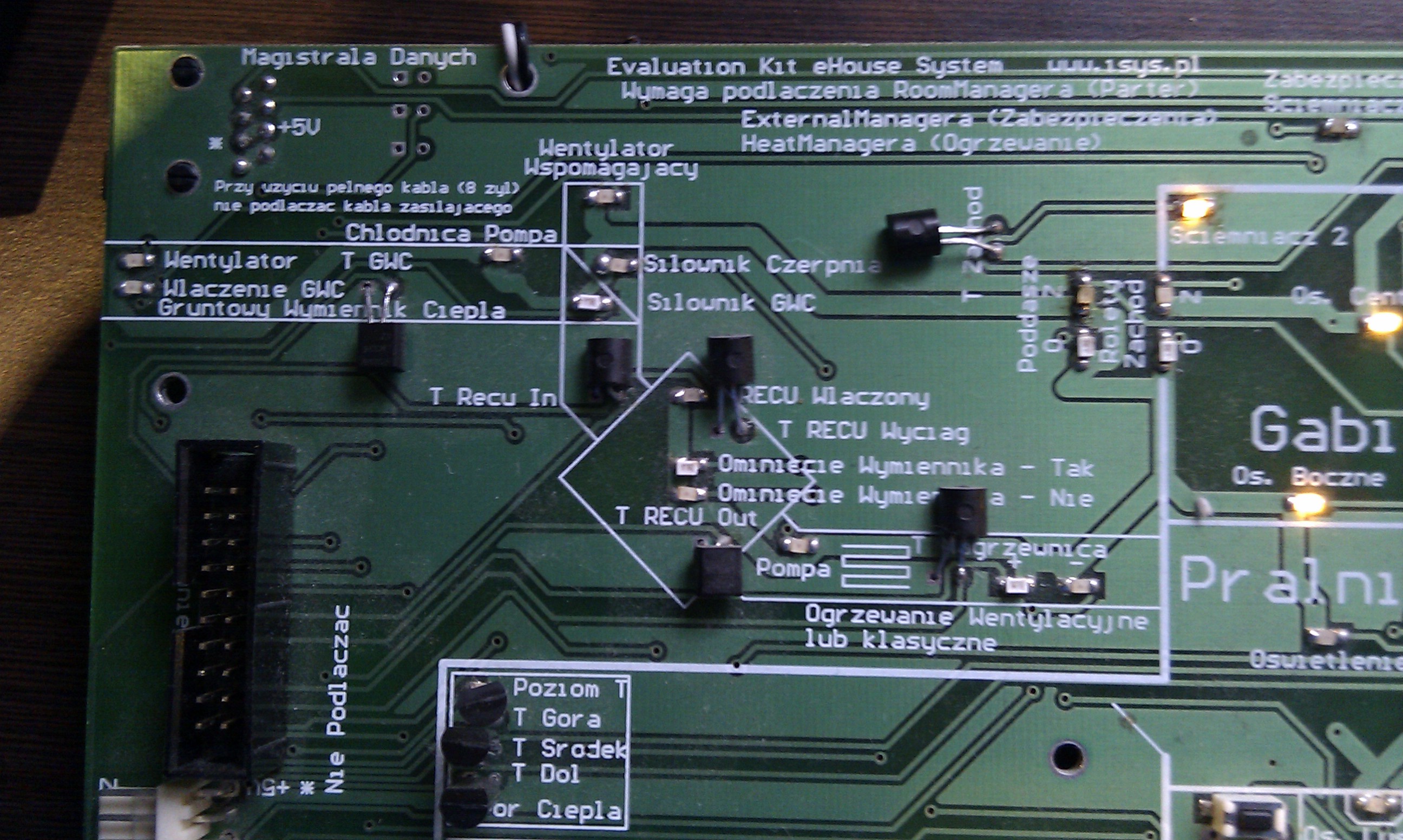
Connecting RoomManager to Demo Installation eHouse home automation – Full Screen
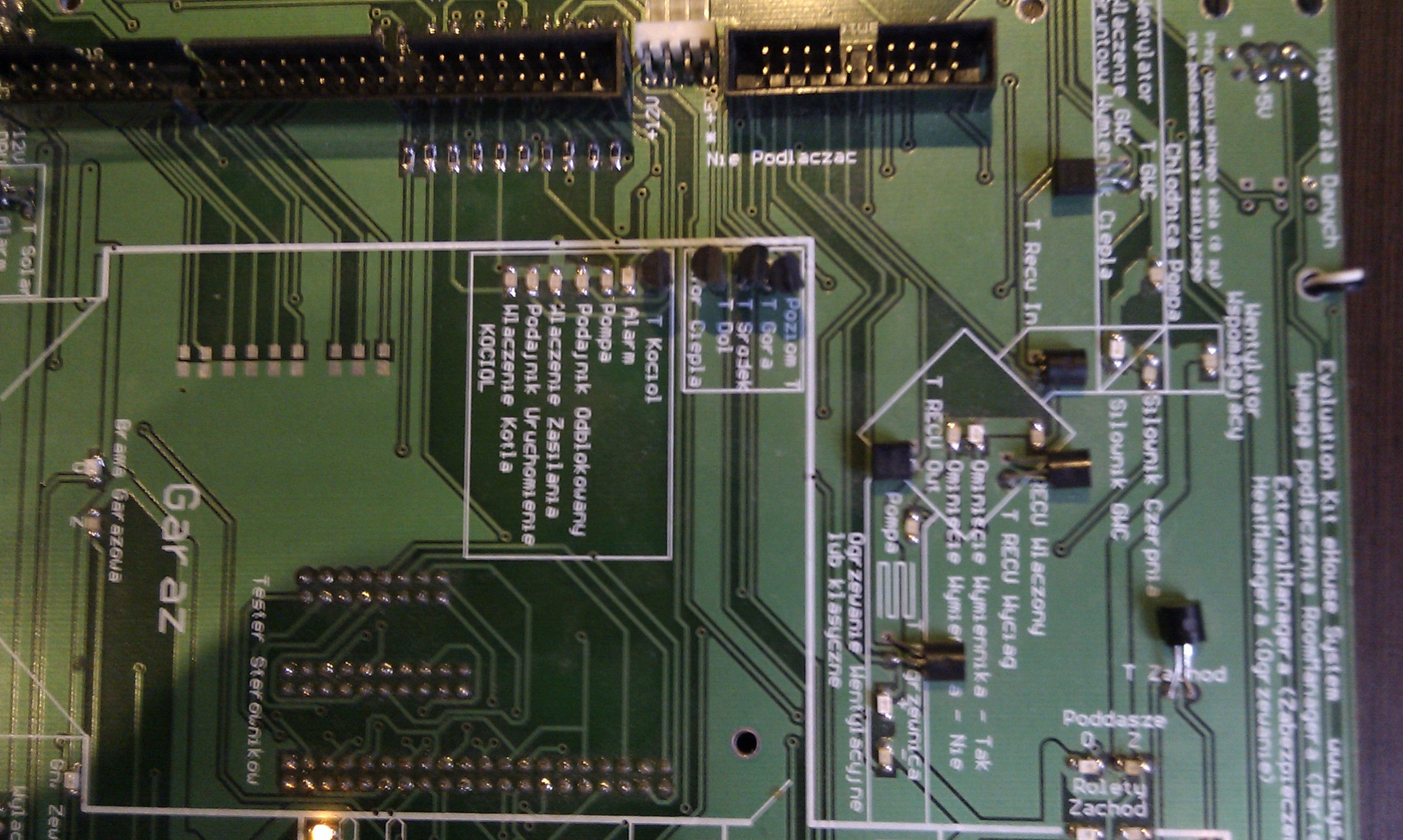
Connecting RoomManager to Demo Installation of eHouse home automation – Full Screen
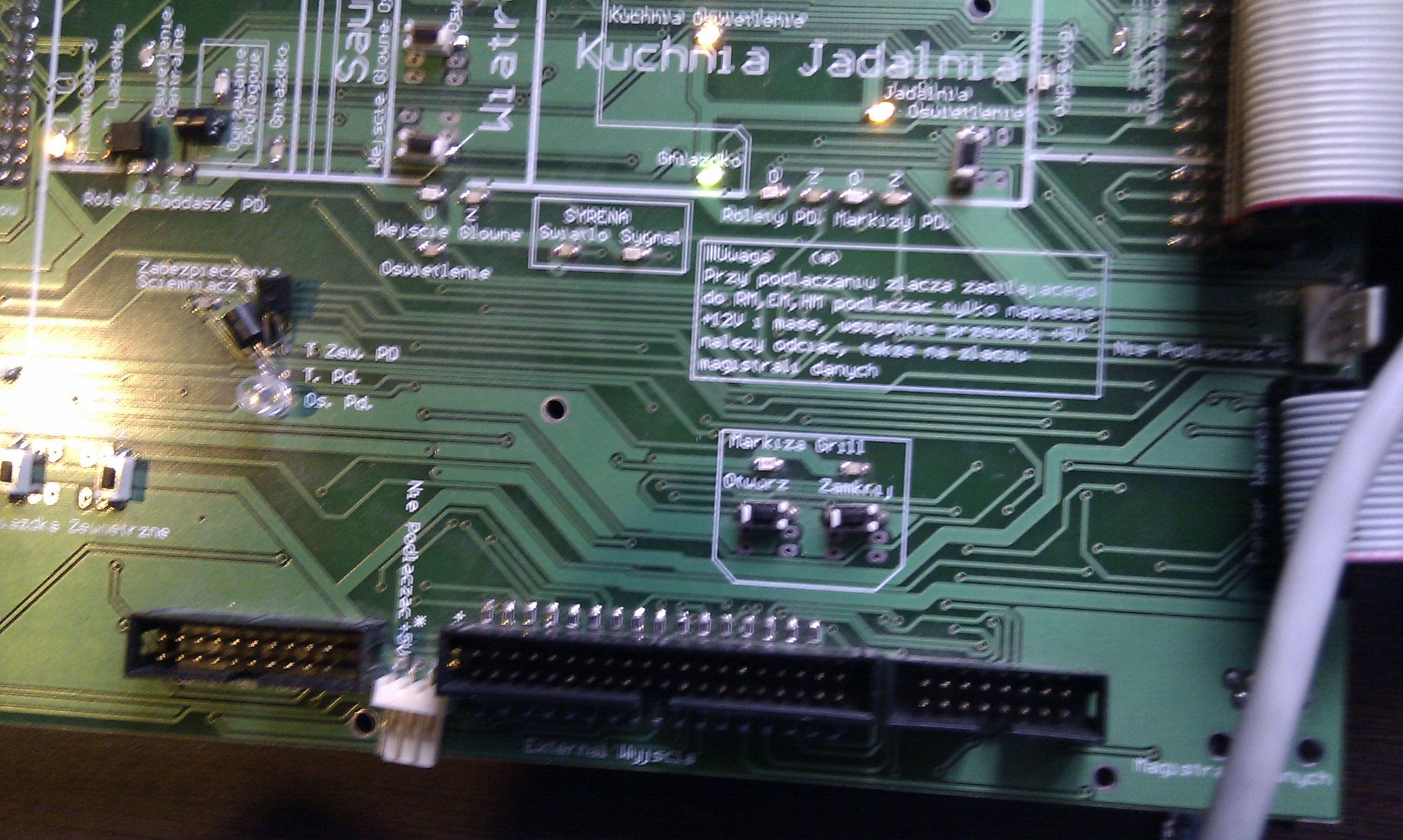
Connecting RoomManager to Demo Installation of eHouse home automation – Full Screen
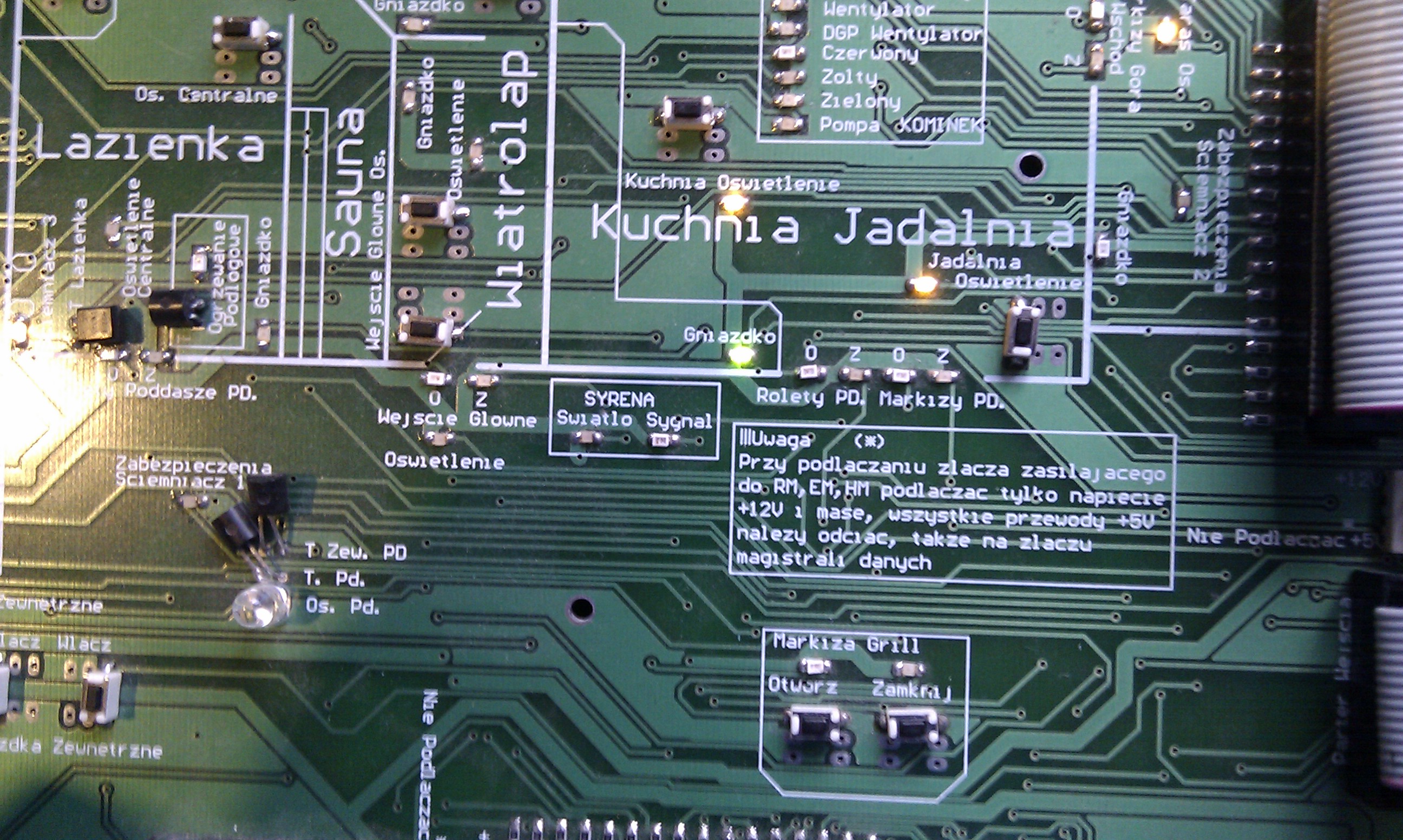
Connecting RoomManager Controller to Demo Installation of eHouse home automation – Full Screen
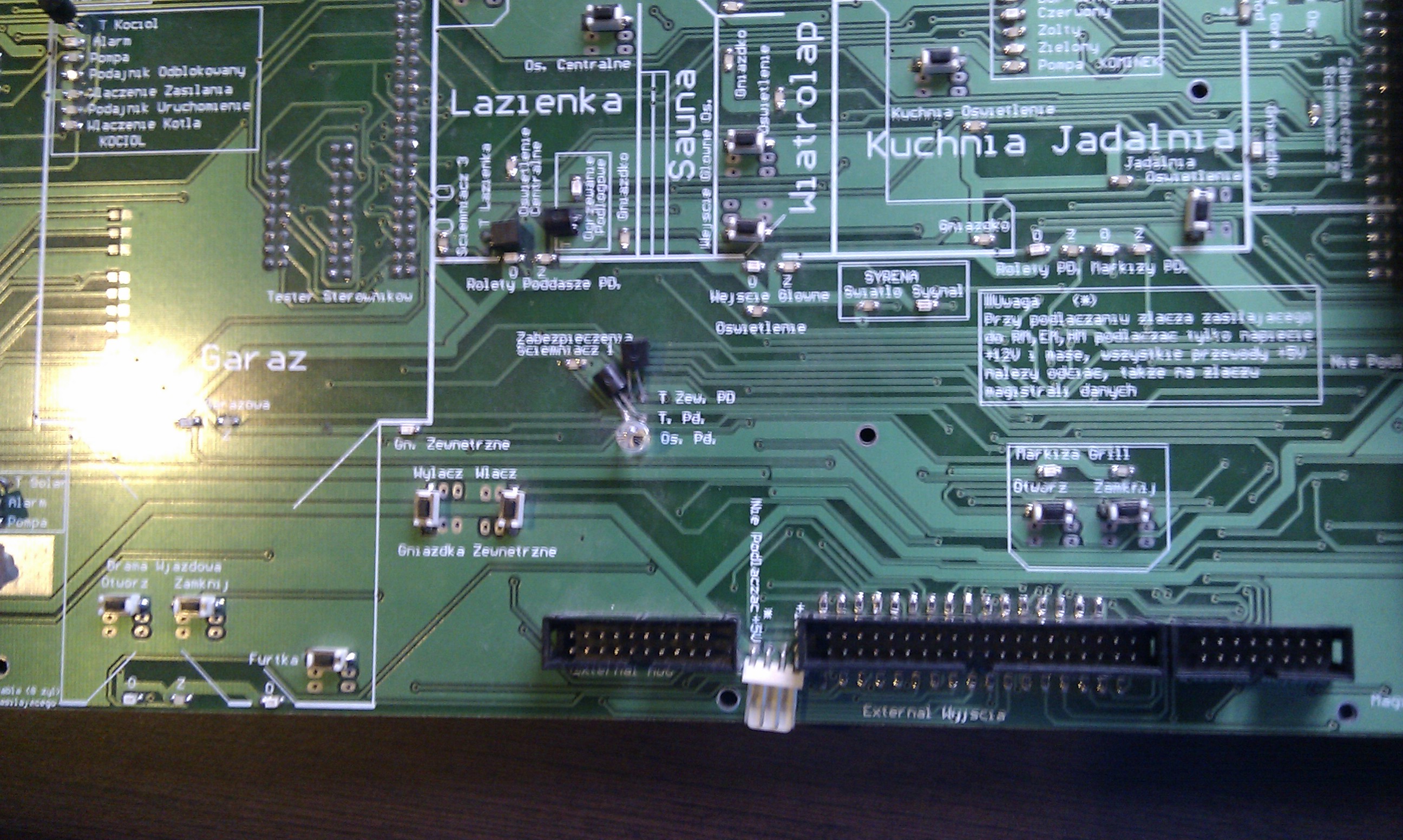
Connecting RoomManager Controller to Demo Installation of eHouse home automation – Full Screen
Other Controllers for home automation system eHouse one connected in the same .
After power up, check the demo module to communicate with a PC on the serial port COMx plugged into the system by typing in the configuration files “com.cfg” and “SAMPLES/com.cfg” number of port .
In case of problems, check the communication with the HyperTerminal application by checking the serial port by setting the transmission parameters.
speed = 115200
1bit stop
no flow control
Parity (E) Even
eHouse Controllers ( Building Automation – Controllers )
After power on reset signal is sending, which is visible in the application terminial window ( home automation – Software ) .
Reset is repeated every few minutes in the absence of eHouse.exe communication software ( home automation – Software ) .
More info:
eHouse Home Automation – Savings by the installation of home automation
Home Automation – Security home , alarm , control of blinds burglary system
Building Automation – Self-Installation Do it yourself